A small tool for macOS
Find your focus.
Leave room
for a break.
A quiet rhythm for work and rest, made visible on your desktop. Set your own pace. Flowloop keeps time.
FlowLoop.dmg Latest GitHub release
Unsigned DMG · Read before installing
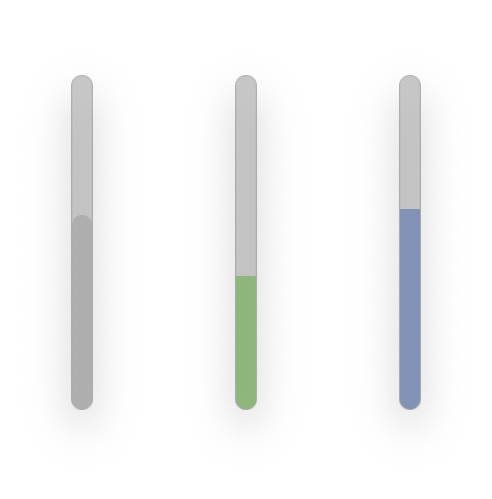
A rhythm, not a race.
Work. Pause. Begin again.The idea is simple
One thing at a time.
Then a little space.
Choose a task. Give it your attention. When it’s time to step away, let yourself take the break.
Flowloop follows a work-and-break cycle inspired by the Pomodoro Technique, with intervals you can change to suit your day.
Read about the technique ↗01 / WORK
A little time to get into it.
Settle into one task. A visible progress bar keeps the time in view.
Example settings shown below. Work and break intervals and the flow count are adjustable.
Why breaks matter.
The research behind the rhythmAbout Flowloop
A little distance.
A fresh return.
Flowloop gives work and breaks a visible rhythm. Its inspiration comes from the Pomodoro Technique and research into attention and recovery.
In a laboratory attention task, Ariga and Lleras found that brief switches away from the main task prevented the performance decline seen with uninterrupted work. [1]
In a study of Chinese office employees, Zhu, Kuykendall and Zhang found that breaks during the workday were associated with less fatigue and improved mood. [2]
These studies examined attention and recovery. They did not test Flowloop or establish a single ideal work-and-break schedule. Choose intervals that suit your tasks and your day.
References & further reading
Ariga, A. & Lleras, A. (2011). Brief and rare mental “breaks” keep you focused. Cognition, 118(3), 439–443.
From the original site: University of Illinois at Urbana-Champaign, Brief diversions vastly improve focus, researchers find. ScienceDaily, 8 February 2011. University’s original report ↗
Zhu, Z., Kuykendall, L. & Zhang, X. The impact of within-day work breaks on daily recovery processes: An event-based pre-/post-experience sampling study. Journal of Occupational and Organizational Psychology, 92(1), 191–211 (2019; first published online 26 November 2018).
Make it your own.
A few thoughtful controls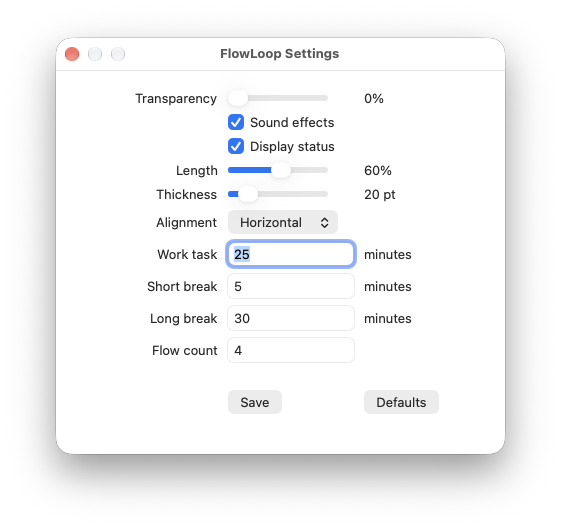
- 01
Your timing.
Set the length of work, short breaks and long breaks. Choose the flow count for each cycle.
- 02
Your corner of the screen.
Adjust transparency, length and thickness. Choose horizontal or vertical alignment, and show or hide the status.
- 03
Room for interruptions.
Pause when life happens. Continue when you’re ready. Keep sound effects on, or work quietly.
A look at your progress
See the work
you’ve put in.
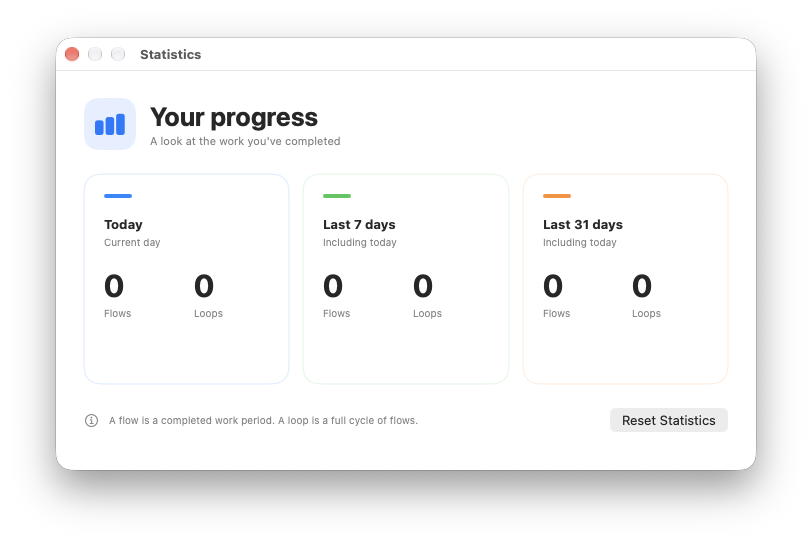
Review completed flows and loops for today, the last 7 days and the last 31 days.
A flow is a completed work period. A loop is a full cycle of flows.
Look & Feel
Four views from the original Mac releaseThe original app alongside work and breaks. Open any screenshot to view it full size; the updated settings and statistics appear above.
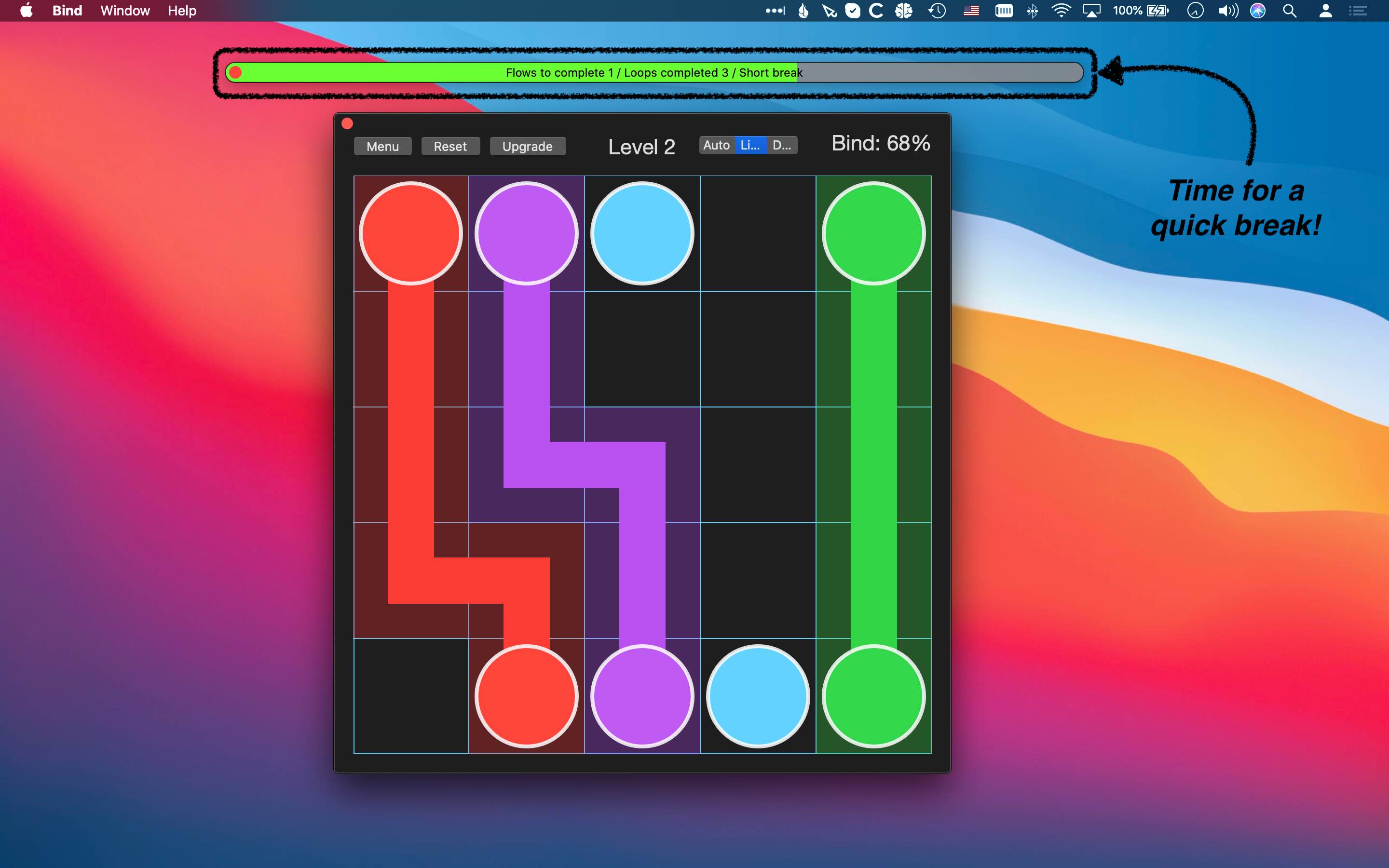
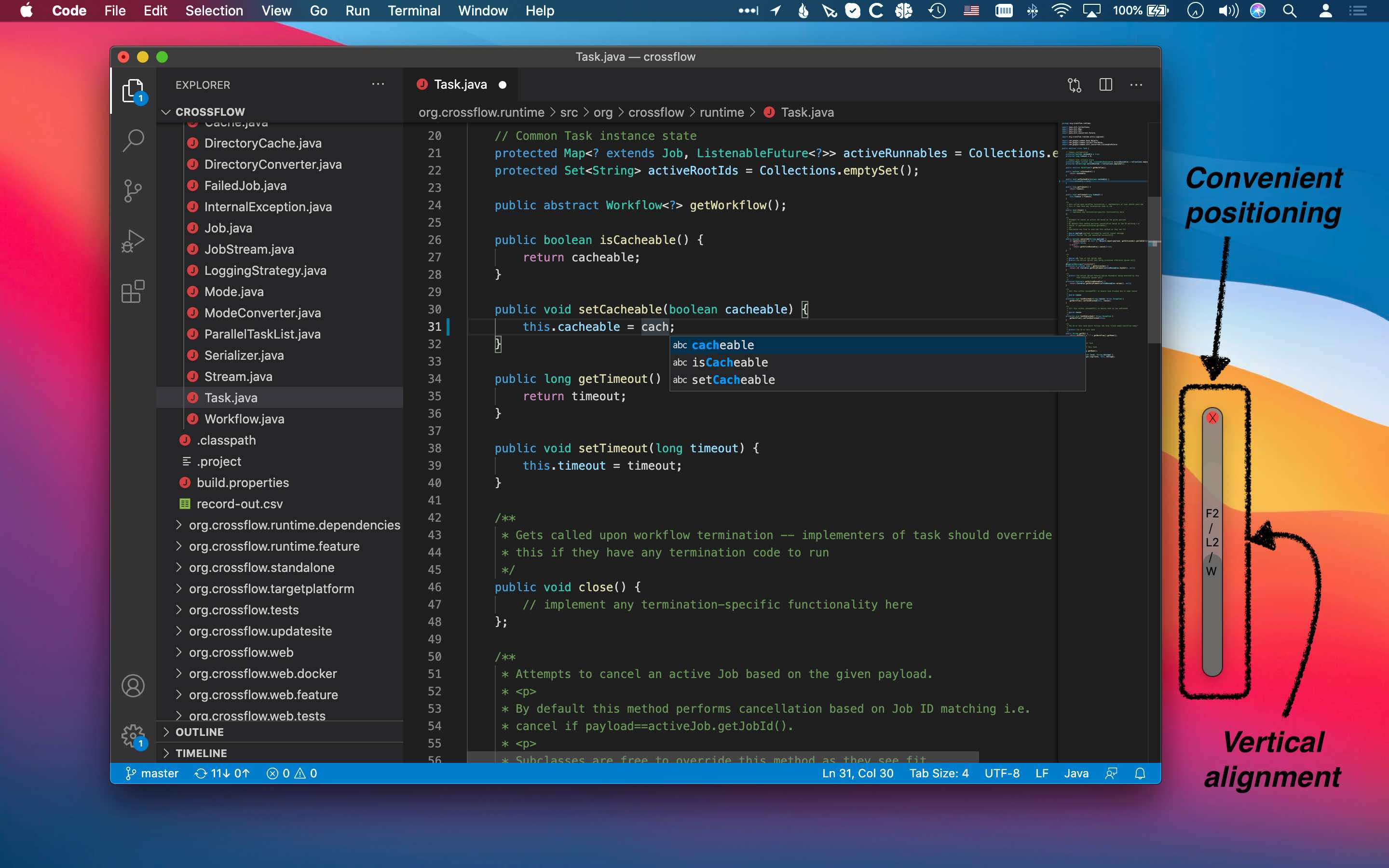
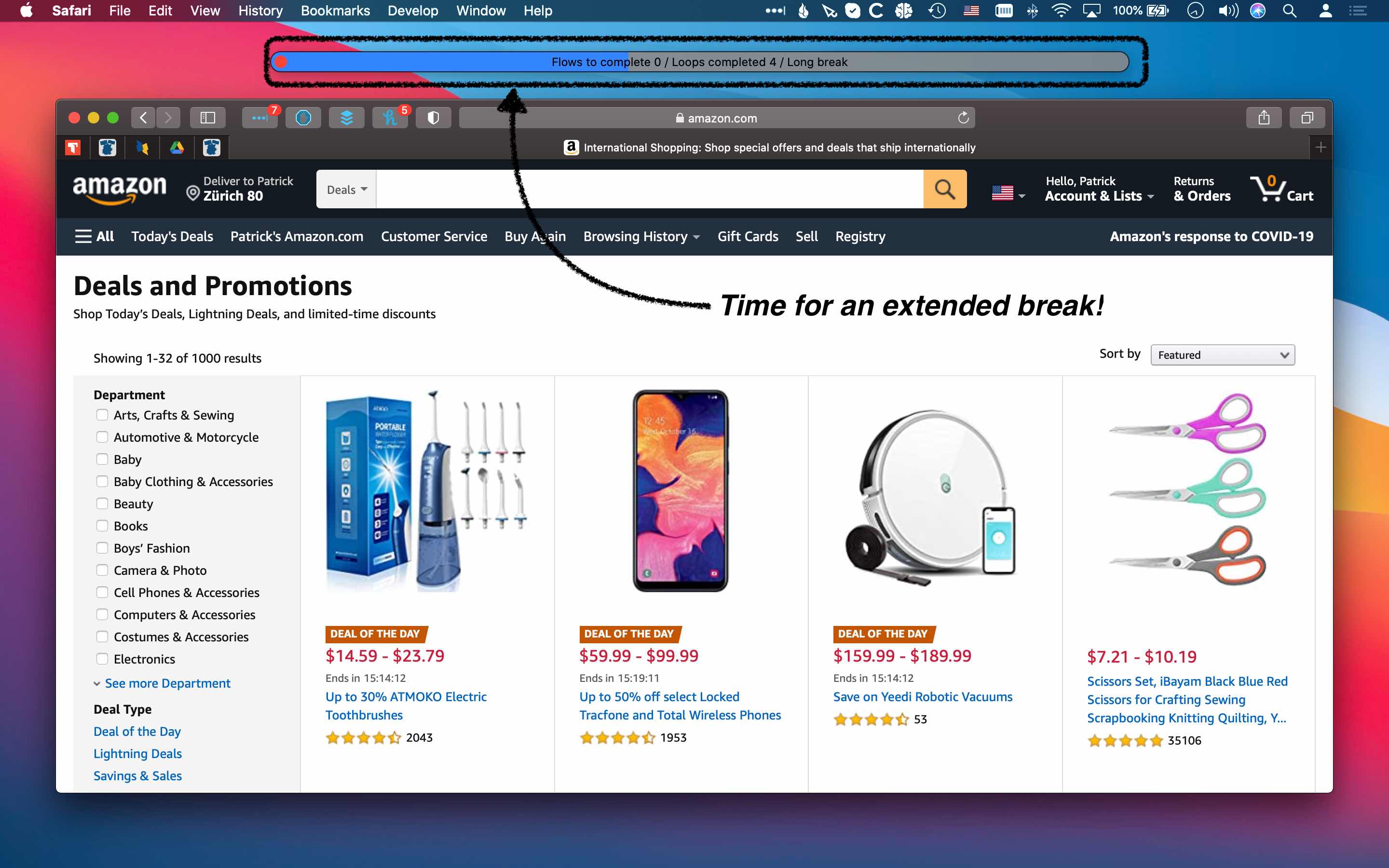
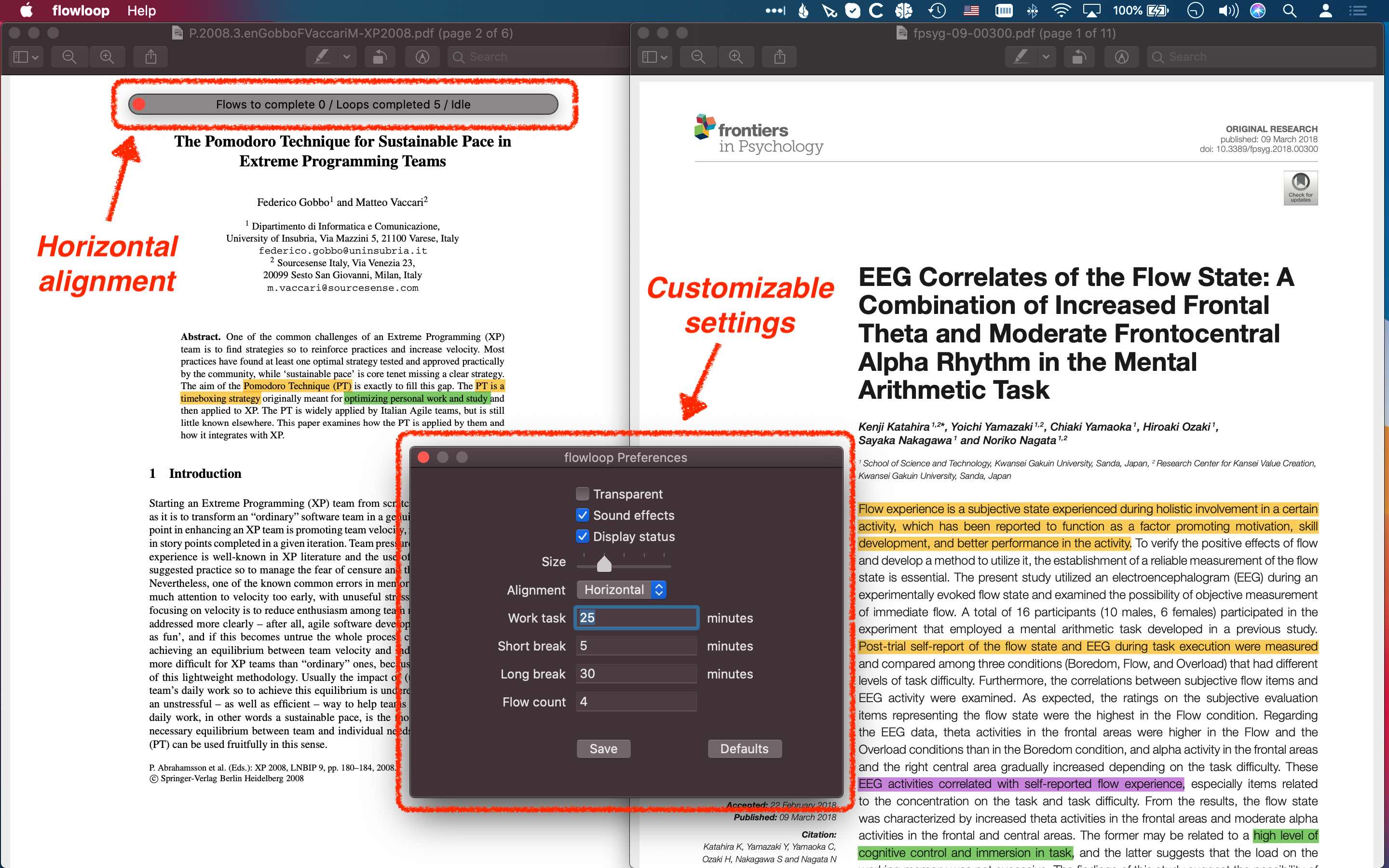
A small presence on your desktop.
Testimonials
A voice from the original release“What I really enjoy about flowloop is how unobtrusive it is on the screen.”
Read A. M.’s full account
I’ve always found it really hard to strike the balance between periods of hard work and time to reflect and consolidate. Frequently, I would immerse myself in work from the time I sat down at the computer in the morning right up until my lunch break, and then happily head off to eat feeling accomplished. But when it was time to get back to it, I would find myself struggling to concentrate for longer than a few minutes. I couldn’t work out what the problem was; I was doing so well in the morning but just couldn’t get off the ground in the afternoon.
It didn’t occur to me that working short breaks into my day was the answer – after all, we live in a society that prizes productivity above all and where colleagues frequently find themselves competing to be the last to leave the office. My ability to work for hours without a break was something I was proud of. Yet further research into my problem told me that scheduling time to step away from the screen and do something else could stop me from feeling so burnt out in the afternoons. Feeling sceptical, I decided to give the famed ‘Pomodoro Technique’ a try…
There are several interpretations and adaptations of this particular method, and many apps that promise to boost productivity and help to get their users into an effective working pattern. Yet when a trusted colleague recommended that I download flowloop, I decided that this was the one to choose.
What I really enjoy about flowloop is how unobtrusive it is on the screen. The app’s design is cool and clean, and the progress bar is small enough to sit at the side of whichever task I have open. As someone who is easily led astray by visual distractions, the ability to make the progress bar as small as possible is invaluable!
The various possibilities for customising the technique also set flowloop apart. Generally, I find that 25 minutes to concentrate and 5 minutes to make a cup of tea allows me to get into a flow state. However, having the freedom to alter this is incredibly helpful. For example, on a strict deadline, I’ll sometimes change to 50 minutes of concentration and 10 minutes of break. By contrast, when if I’m feeling tired or overwhelmed, flowloop lets me split my working day into shorter, manageable bites.
I can now proudly say that my mornings of frenzied, unsustainable work and afternoons of staring out of the window are a thing of the past.
— A. M., United Kingdom · Original testimonial
A little room for better work
Give your day
a little rhythm.
Get the latest Flowloop build for your Mac.
Download for MacBefore you download
- Release
- Latest GitHub release
- Download
- FlowLoop.dmg
- Format
- macOS disk image
- Hosted on
- GitHub Releases
The DMG is not signed with an Apple Developer account.
Getting started
Opening Flowloop for the first time.
This build is not notarized by Apple, so macOS may block the first launch. Only choose Open Anyway if you trust the Flowloop download from the GitHub release linked above.
Install the app and try opening it.
Open FlowLoop.dmg, copy FlowLoop.app to your Applications folder, then open FlowLoop from Applications.
Allow FlowLoop in Privacy & Security.
If macOS blocks it, open System Settings → Privacy & Security. Scroll to Security and click Open Anyway beside the FlowLoop.app message.
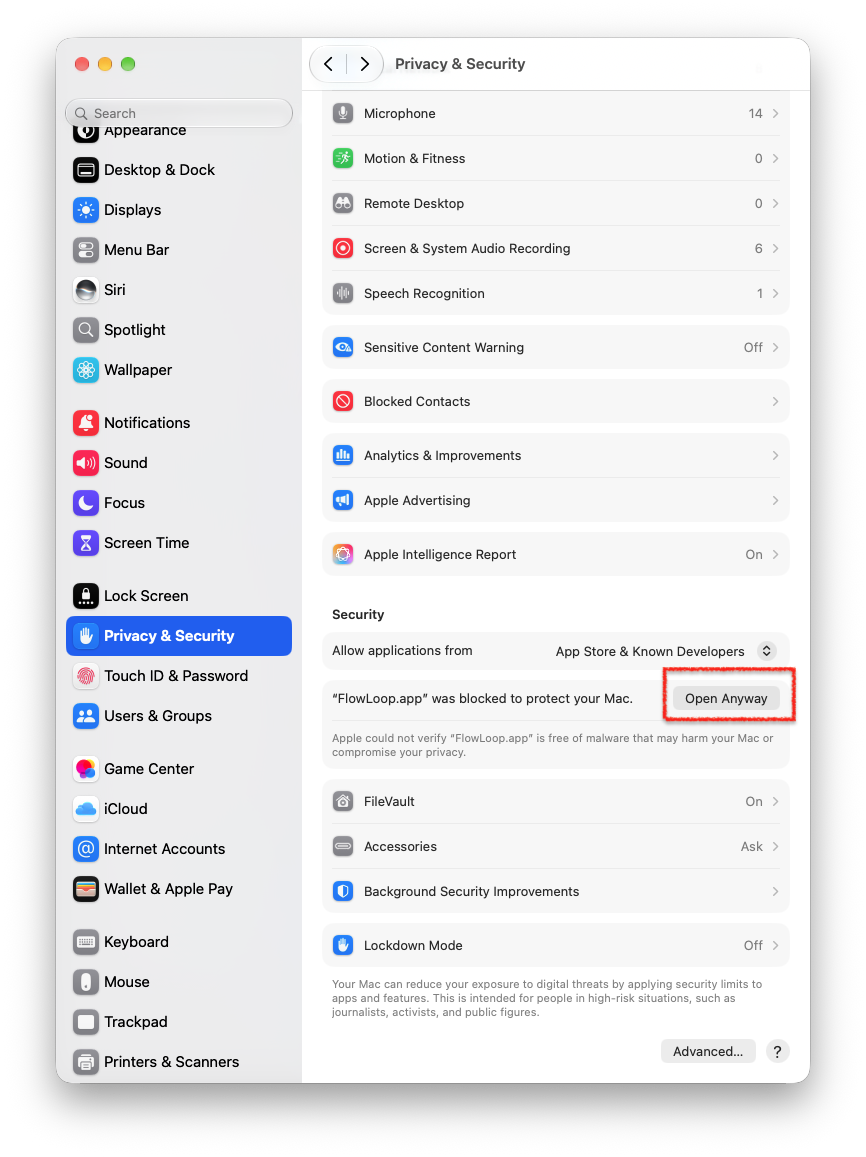
Choose Open Anyway beside FlowLoop.app. View full size ↗ Confirm that you want to open it.
In the confirmation dialog, choose Open Anyway. On some macOS versions, the button is labelled Open.
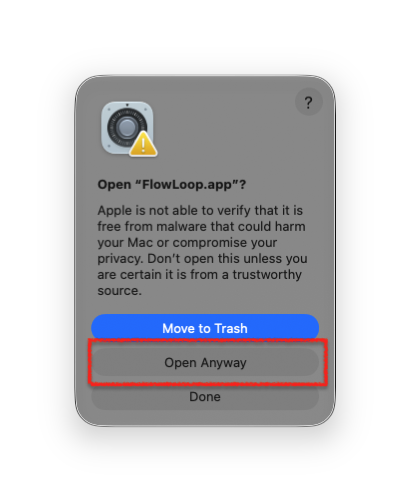
Confirm Open Anyway in the dialog. View full size ↗
After approval, you can open Flowloop normally from Applications. Apple’s guide to opening apps safely ↗